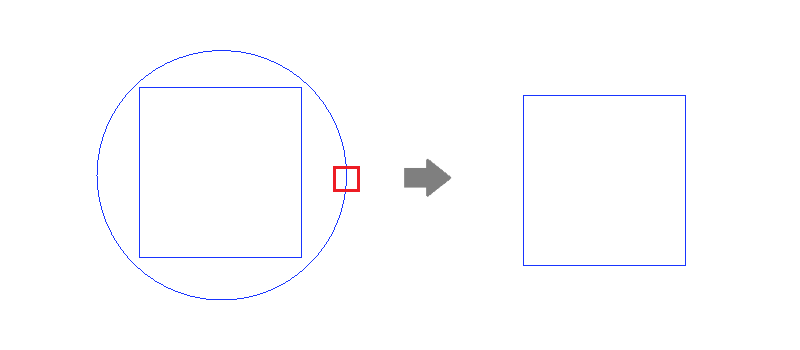
The Trim Cut command allows you to delete a segment or arc from shapes on the eCADSTAR Schematic Editor or Symbol Editor canvas. If shapes overlap each other, then a segment or arc can be deleted that is created by the overlapping shapes.
- Toggle on this command by clicking Draw > Reshape > Trim Cut on the eCADSTAR Schematic Editor or Symbol Editor ribbon. The command remains toggled on after it is executed.
- Toggle off this command by clicking it on the ribbon, pressing Esc on the keyboard or clicking Cancel on the assist menu.
For an area of the canvas that contains members of a group, if the shape of objects within the area is changed using the Trim Cut command, then the membership of the group is not affected.
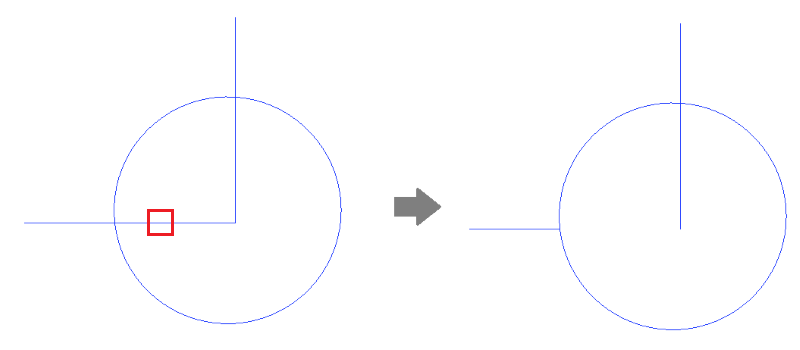
In the following example, the segment is deleted that is created by a circle overlapping a line, when you click the indicated position.
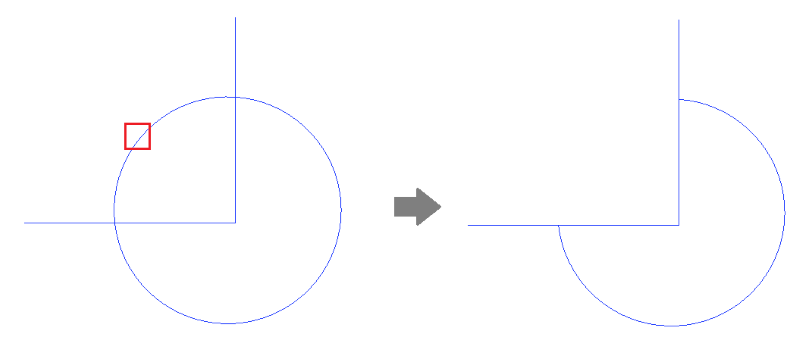
In the following example, the portion of the circle is deleted that is created by a circle overlapping a polyline, when you click the indicated position.
In the following example, the complete circle is deleted when you click it. This is because it is not overlapped by another shape.