
Assigning a Stimulus
This topic describes how to assign a stimulus to a scenario in Electrical Editor.
- Select the driver symbol, and then click Set Stimulus on the assist menu.
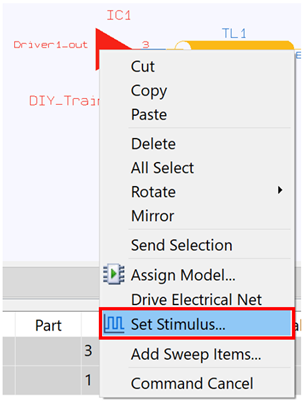
The Stimulus dialog is displayed.

- In the Stimulus filename box, enter “DIY_Training” and click Add. The stimulus filename is added to the list of available stimuli.
- For the DIY_Training stimulus, enter the parameters shown in the following below.
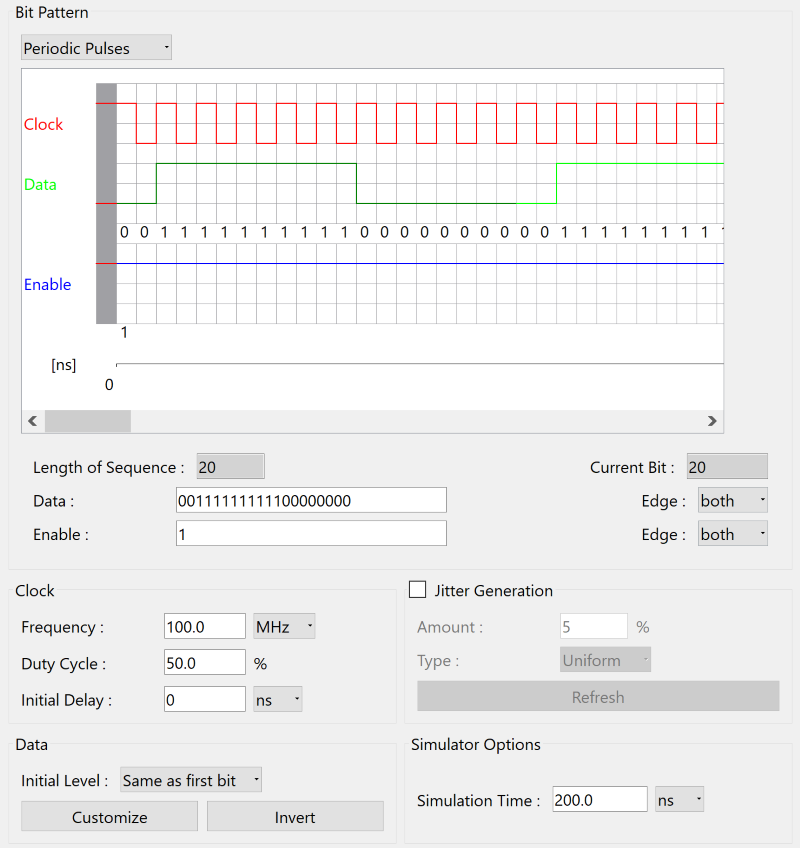
- Click Save to save the details of the stimulus, and click OK . The stimulus is assigned to the scenario.

- On the Electrical Editor menu bar, click Tool > SI Analysis.
- Click OK in the displayed confirmation dialog to continue.

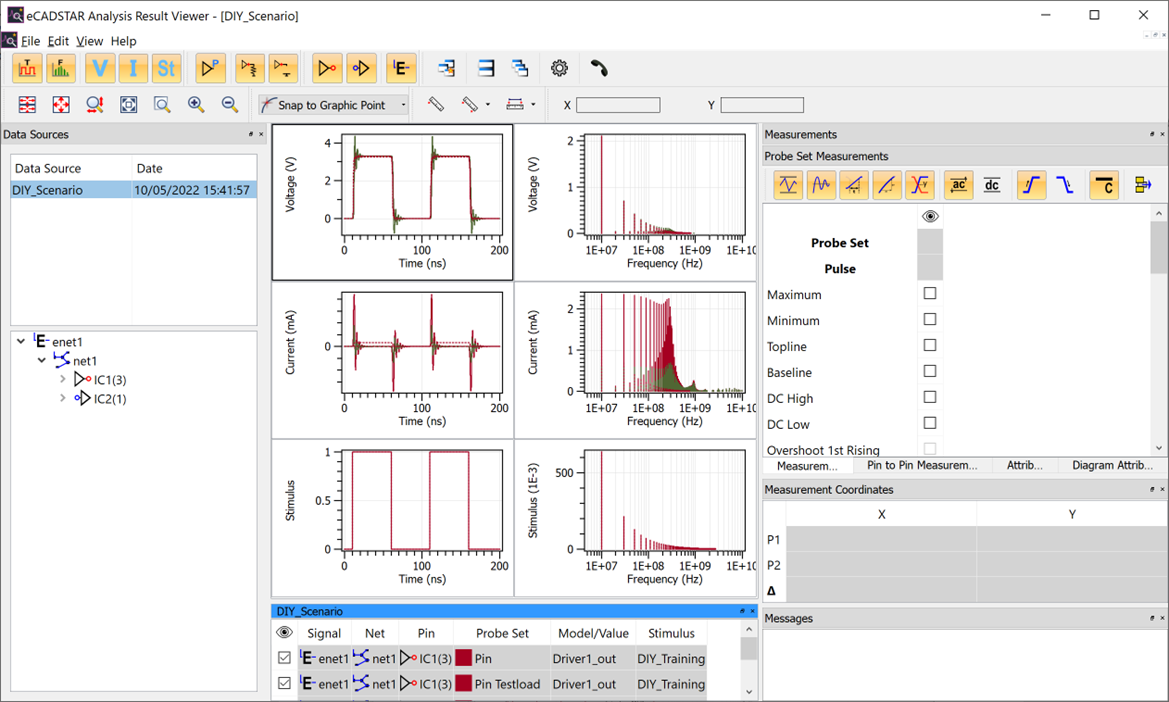
The simulation process is started, and eCADSTAR Analysis Result Viewer is displayed with the result of the simulation.

Filtering can be applied to adjust the layout of the waveforms in Analysis Results Viewer.
- Close eCADSTAR Analysis Result Viewer.
